
We offer tutorial videos to help you use your phone and computer hands-free. This tutorial will teach you how to use voice control to navigate, click, and enter text hands-free into your iPhone. You can also use Siri to add additional capabilities such as making calls easily and allowing you to be able to set up phone passcode unlock.
The first and most important step is to enable (turn on) both Voice Control and Siri in your iPhone Settings. If your arms are injured or you are disabled, we suggest you ask a family member or friend to help you with the setup steps and to print the PDF below for you to read and refer to whenever you forget command names. We also have a Microsoft Word version.
Microsoft Word (editable version below):
Step 1: Turn on Voice Control (and practice using it)
Go to Settings > Accessibility > Voice Control > Voice Control toggle turned on
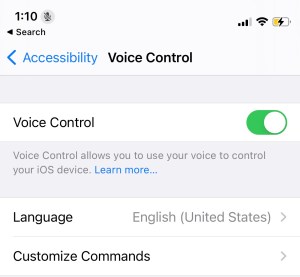
To practice using voice control, try saying the following commands, on by one in order:
- “Go to Sleep”
- “Wake Up”
- “Show Numbers Continuously”
- “Tap 3” (or say “Tap [#]” for any number)
- “3” (or say “[#]” for any number)
- “Open Messages”
- “Show Grid”, “3”, “Tap 5” (pause between each command)
- “Go Home”
Step 2: Turn on “Listen for Hey Siri”, “Allow Siri When Locked”, & “Always Listen for Hey Siri”
Go to Settings > Siri & Search > Listen for “Hey Siri” toggle turned on (and also, “Allow Siri When Locked”)
Next, Go to Settings > Accessibility > (scroll down) > Siri > “Always Listen for Hey Siri” toggle turned on


Step 3: Remove passcode, or set up custom voice command to unlock your iPhone passcode hands-free
Go to Settings > Face ID & Passcode (or Touch ID & Passcode) > (scroll down) > Turn Passcode Off
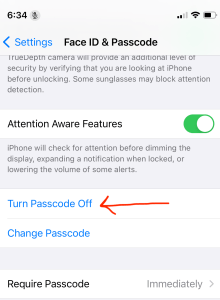
If you’d like to set a custom voice command to unlock your iPhone (e.g. “Open Sesame”), refer to the tutorial video or PDF instructions at the beginning of this webpage.
Step 4: Practice!
Try saying the following commands:
- Wake Up
- Go to Sleep
- Show Numbers
- Hide Numbers
- Show Numbers Continuously
- 2
- 4
- 7
- Tap 2
- Tap 4
- Tap 7
- Show Grid
- Hide Grid
- Swipe Up
- Swipe Down
- Swipe Left
- Swipe Right
- Swipe Up at 2
- Swipe up at 5
- Go Home
- Open Control Center
- Open Phone
- Open Settings
- Open Camera
- Open Photos
- Open Clock
- Open Safari
- Open App Switcher (note: try “swipe right”, and “swipe up” right after)
- Type something into Safari browser search entry, and then say “Enter That”
- Open Messages
- Open a message draft, and then say “Tap iMessage” to draft your message
- Type a message, and then say “Delete That”
- Retype the message, and then say “Tap Send”
- Delete All
- Undo That
- Go Back (useful command when navigating between Settings or Messages)
- Hey Siri, call John Smith
Step 5: If you get stuck… troubleshoot
If Siri is not responding when you say “Hey Siri” to wake up the iPhone screen (e.g. if you are unable to use your hands to lift the phone screen to wake it up), then make sure to enable all of the following 3 things in Settings: “Always Listen for Hey Siri” toggle turned on, “Listen for Hey Siri” toggle turned on, and also, “Allow Siri When Locked”. You may need to go to Settings > Siri AND to the Settings > Accessibility > Siri menus, as explained in the beginning of this webpage.
If Siri is “talking back at you” too much, and not responding properly to your commands, e.g. Siri doesn’t respond correctly when you say “Go Home”, “Open Sesame”, or “Tap OK”, it’s probably because you haven’t waited long enough for Siri to turn off! Voice control, NOT Siri, responds to most of these particular commands. So, wait a good long 10 seconds AFTER saying “Hey Siri”, and make sure the Siri symbol disappears, before proceeding to say “Go Home” or “Open Sesame”.
If “Open Sesame” (or whatever your custom phrase is) does not properly unlock your iPhone (but does attempt to tap), it might be because you have too long of a passcode. This will only work for 5 or fewer digits passcode. Go to Settings and switch your passcode to be shorter (e.g. 4-digit under Passcode Options), then re-set your custom voice phrase and custom gesture in Settings. Also make sure to say “Wake Up” at your Lock Screen and to have voice control enabled in your Settings.
If none of the above is working, it could also be because you haven’t updated your phone! Restart your phone, and go to Settings > General > Software Update, to update your iPhone software (this includes voice control and Siri updates).
If you use voice control on your iPhone for a while and randomly get an error message “Microphone is being used by another application” and “voice control will quit”, it might be an issue with your AirPods or headphones, or it may be because of a FaceTime call or voice call you just made. To fix it, disconnect your AirPods, end all voice and FaceTime calls you might be on, shut down your phone to restart it, and make sure voice control is toggled off and then on again in Settings. An easier method is alternatively to just take your AirPods out of your ears and back into the case, leave them in there for a second, and then take them back out of the case again to put back into your ears, and say “Hey Siri, turn on Voice Control” and say “Wake Up”. (if you are using AirPods and voice calls or FaceTime and getting this issue).
If it still isn’t working even after that, then you can submit a custom request here and we will do our best to help you out. Let us know your iPhone version, iOS software version, and let us know the issues you’re having.
Note: All of our videos are unbiased and unsponsored.
 WorkingHandsFree.org