
When working hands-free on a Windows PC computer, your best go-to voice control software will be Dragon (e.g. Dragon Naturally Speaking software from Nuance). However, if you try to do your work in Excel with Dragon, you will get an error popup.
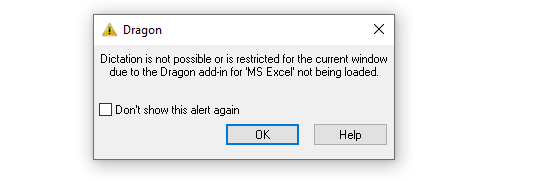
To fix this error and enable Dragon to work in Microsoft Excel, follow the instructions below:
Step 1: Go to File > Options > Add-Ins
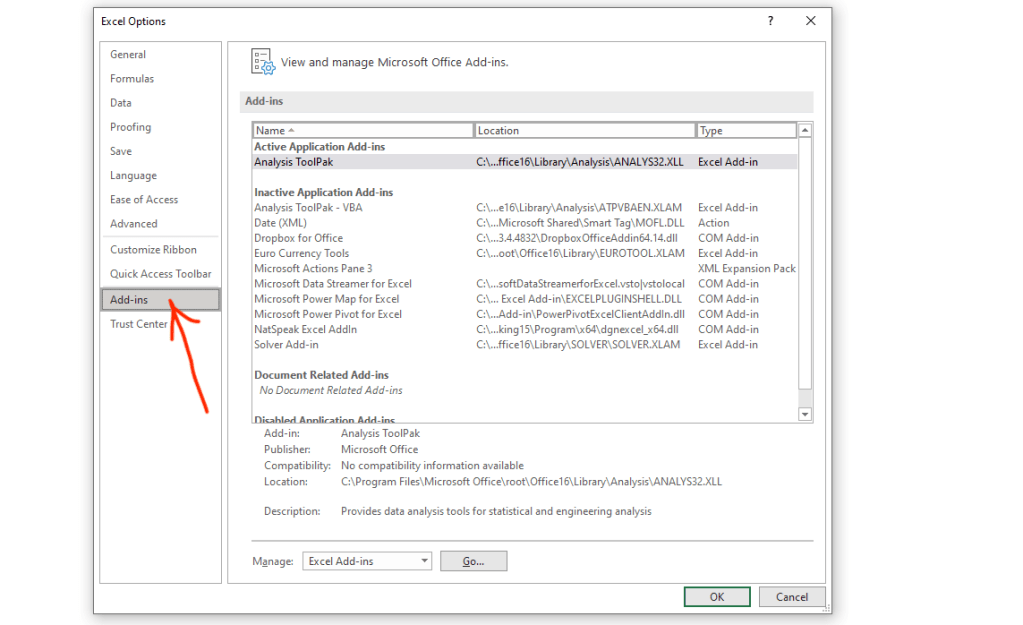
Step 2: Next, under “Manage:”, select COM Add-ins and click Go…

Step 3: Select the NatSpeak Excel Addin checkbox and click OK.
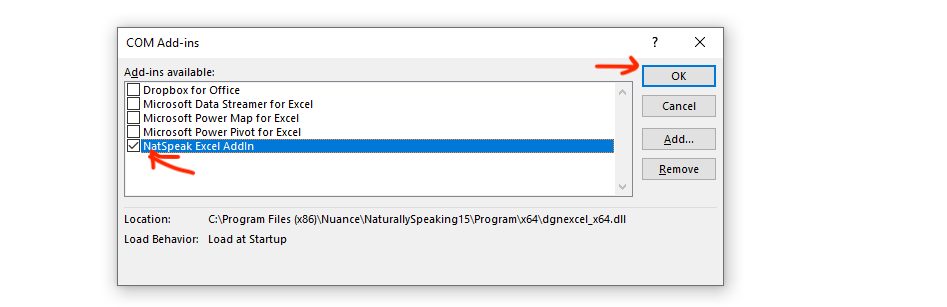
Step 4: Lastly, restart Excel by quitting and then re-opening Excel.
All done! Now, you can use Dragon to navigate different cells and speak text into Excel (as well as navigate between different spreadsheets, etc.) Give it a try!
- “Select cell B2” and then say something e.g. “Hello World”
- “Select <row><column>” (where you can say any letter for row, and any number for column, to navigate to a particular cell in the spreadsheet )
- Move Down / Move Up
- Move Right / Move Left
- Select Row 5
- Move to Column D
- Insert Column
Here is a link to a website containing more Dragon excel commands you can use.
If you have difficulties with the instructions above, please submit a Custom Request to us below for help, explaining what errors you’re getting and we will get back to you as soon as we can.
 WorkingHandsFree.org